|
|
| (231 intermediate revisions by 2 users not shown) |
| Line 4: |
Line 4: |
| | | __TOC__ | | | __TOC__ |
| | |} | | |} |
| | + | |
| | + | We do encourage all users to be on the latest release. You are welcome to remain on older versions, but we will only be able to provide limited support (and no bug fixes) to older versions. Please consider upgrading to the latest version. |
| | | | |
| − | Here are instructions for uploading the latest Repetrel software and associated applications (EcoSystem Apps):
| + | <span style="color: red;">'''''Please note that our environment is intended to be run by the ''HYREL'' user in the operating system, with FULL ADMINISTRATOR rights and privileges, on a windows device running English as the native language. If you vary from this, results may be unpredictable.'''''</span> |
| | | | |
| − | == '''Repetrel''' [[File:Download_button.png|150px|link=http://hyrel3d.net/downloads/repetrel/Repetrel_2.855_2017.rar]] == | + | <span style="color: red;">'''''Please note that version 4 and above require a ($250) license key to operate - see [[Licensing]] for details.'''''</span> |
| | | | |
| − | * As of 01 Mar 2017, the latest v2.x full version is [http://hyrel3d.net/downloads/repetrel/Repetrel_2.855_2017.rar 2.855]
| + | <span style="color: red;">'''''Please note that you should ensure that your ST-Link is working before you attempt this upgrade.'''''</span> |
| | | | |
| − | The Repetrel download will install the Repetrel software (release 2.855) as well as the firmware for your 407 Motion Controller and your 103 Print Head and Hot Bed Controllers. This install must be carried out per the instructions below, so that Repetrel and its dependent resources will be found in the expected locations.
| + | <span style="color: red;">'''''Please note that if you cannot perform the upgrade yourself, we charge a $100 service fee to help.'''''</span> |
| | | | |
| − | A video giving a quick overview is available at: https://youtu.be/VMyS3h4qiSA
| + | <span style="color: red;">'''''Please note that if you are installing on another computer, you should read the [[Installing_Elsewhere]] page.'''''</span> |
| | | | |
| − | A video showing the actual upgrade process is available at: https://www.youtube.com/watch?v=n4QwiuQtjO0
| + | == Upgrade Overview == |
| | | | |
| − | ''<span style="color: red;">On new (clean) installs, you MUST run Slic3r.exe BEFORE launching Repetrel. Configure it to run in expert mode, then exit.</span>
| + | The new Repetrel installer will also install the prerequisites, so the process is: |
| | | | |
| − | === Installing Repetrel ===
| + | In brief: |
| | + | <br> 1. Software (you are here now) |
| | + | <br> 2. [[Firmware]] on Motion Controller as well as head/bed controllers |
| | + | <br> 3. [[Settings]] on Motion Controller as well as head/bed controllers |
| | + | <br> 4. [[Licensing]] if you were not already on v4. |
| | | | |
| − | # Download http://hyrel3d.net/downloads/repetrel/Repetrel_2.855_2017.rar (as of 1 Mar 2017). This contains:
| + | == '''Current Version to download: 4.2.603''' == |
| − | ## Repetrel 2.855
| |
| − | ## 407 Motion Controller firmware 2.415 (reports back as 2.414)
| |
| − | ## 103 PH/HB Controller firmware (see next table)
| |
| − | # Extract the contents
| |
| − | # Rename previous C:/repetrel to C:/repetrel.old (or similar)
| |
| − | # Move your extracted repetrel directory to C:/repetrel
| |
| | | | |
| − | Software upgrade complete. Occasionally a user will have to point existing shortcuts to the new executible, C:/repetrel/bin/repetrel.exe
| + | There are always minor enhancements and bugfixes, so please use the latest, linked below. |
| | | | |
| − | [https://www.youtube.com/watch?v=n4QwiuQtjO0 Click here to watch a video of the software upgrade process.]
| + | The current version is recommended for all users: |
| | + | * Repetrel Program '''4.2.603''' - a new version is due out in April, please check back. |
| | + | * Motion Controller Firmware '''4.203c''' |
| | + | * Head/Bed Firmware '''103_4.053c''' |
| | | | |
| − | [https://youtu.be/cFAFRkpLmww Click here to watch a video of the 407 Motion Controller Firmware upgrade process.]
| + | To find out what version of <span style="color: red;">Repetrel Software</span> you are on now: |
| | | | |
| − | [https://youtu.be/yM8QMZBTb4o Click here to watch a video of the 103 HotHead/HotBed Controller Firmware upgrade process.] | + | [[File:Rep_mc_version_info.png|750px]] |
| | | | |
| − | ==== Upgrading the Binaries ('''bin folder''') Only ==== | + | == Install This == |
| | | | |
| − | Note: Only valid when upgrading within the SAME main number (v2.x, or v3.x, or v4.x).
| + | Honestly, just use the full installer every time. There are some cases where it's not needed, but it's never a bad thing to do. |
| | | | |
| − | * As of 26 Jul 2016, the latest v2.x bin version is [http://hyrel3d.net/downloads/repetrel/bin2.865.rar 2.865]
| + | <span style="color: red;">'''NOTE: Davo recommends saving your old repetrel folder as repetrel_(version) before doing ANY upgrade.''' |
| − | * As of 20 Feb 2018, the latest v3.x bin version is [http://hyrel3d.net/downloads/repetrel/bin_3.065B.rar 3.065B] - '''DO NOT install this directory unless you are already on version 3.x!'''
| |
| | | | |
| − | # Navigate to C:\Repetrel
| + | === '''Repetrel Installer Full''' [[File:Download_button.png|150px|link=http://surferbuddy.org/downloads/HYREL/Repetrel_full_Installer_4.2.543.exe]] === |
| − | # Rename the '''bin''' directory to bin_(old_version_number)
| + | '''Use this to install in a fresh environment.''' |
| − | # Download the current '''bin''' folder.
| |
| − | # Extract using [https://rarlab.com/download.htm WinRAR]
| |
| − | # Copy the new '''bin''' folder to C:\Repetrel\bin
| |
| − | # Execute Repetrel.exe (your shortcut should still work).
| |
| | | | |
| − | == '''Firmware''' [[File:Download_button.png|150px|link=http://hyrel3d.net/downloads/firmware/Firmware_2017.05.10.rar]] ==
| + | This download has it all - Repetrel, firmware, manuals, recipes, AND the Ecosystem Apps setup to install prerequisites. |
| | | | |
| − | '''''<span style="color: red;">Versions 2.415 and 33/35, * with Spindle Tool firmware, as of 10 May 2017</span>'''''
| + | Download the file and run it as Administrator. |
| | | | |
| − | === Flashing Firmware === | + | <span style="color: red;">'''We are working to make the newest installer available, but for now, please use this one, for 4.2.543''' |
| | | | |
| − | New software will often require new firmware. The latest firmware as of 1 Mar 2017 is part of the Repetrel download, above. However, if you only need to upgrade your firmware, download from: http://hyrel3d.net/downloads/firmware/Firmware_2017.05.10.rar
| + | == Missing the COM Driver? == |
| | | | |
| − | Video instructions for flashing the 103 (HH/HB) Controllers: https://youtu.be/yM8QMZBTb4o
| + | If your lovely operating system decided to upgrade stuff for you, and your tablet no longer talks to the printer (and you have tried the steps listed under "Connectivity" on the sidebar), please download |
| | + | [[Media:CH34x_Install_Windows_v3_4.rar|this driver]], uncompress it, and run as administrator (the default account on all tablets is an administrator account). |
| | | | |
| − | Video instructions for flashing the 407 Motion Controller: https://youtu.be/cFAFRkpLmww
| + | ''Thanks, Microsoft!'' |
| | | | |
| − | '''Clench Valves''' require the primary head to have firmware [http://hyrel3d.net/downloads/firmware/CVFW-35K-49V.rar 49V] installed, so that the clench valve is activated (instead of primes/unprimes). Download and flash per instructions above.
| + | == Installing Offline? == |
| | | | |
| | + | You may need the offline .net updater, available [https://support.microsoft.com/en-us/topic/microsoft-net-framework-4-8-offline-installer-for-windows-9d23f658-3b97-68ab-d013-aa3c3e7495e0 here]. |
| | | | |
| − | ==== Firmware Versions ==== | + | == Older Versions == |
| | | | |
| − | '''''<span style="color: red;">Please note that equipment shipped since early 2015 should only require these three four:</span>'''''
| + | === v1 === |
| | | | |
| − | _FILAMENTS_33A.hex - for all MK-series heads <= OR _FIL_250_PLAT_1A.hex - both should provide the same functionality.
| + | For version 1.85, please visit [[1_Install]] |
| − | _TUBES_35.hex - for all emulsion heads
| |
| − | _LASER_234.hex - for the 808nm and 450nm lasers
| |
| − | _DrillMill_2.3.hex - for the ST1 spindle tool (single phase)
| |
| − | _hydra407rev2.415.dfu - for the STM407 motion controller
| |
| | | | |
| − | '''''<span style="color: red;">Older equipment may require older firmware as follows:</span>'''''
| + | === v2 === |
| | | | |
| − | Most likely, your older MK1-250 heads, with RED RTDs, take:
| + | For version 2.865, please visit [[2_Install]] |
| | | | |
| − | _FIL_250_RED_235A.hex
| + | === v3 === |
| | | | |
| − | Additionally, the following may apply:
| + | For version 3.083_K, please visit [[3_Install]]. |
| | | | |
| − | First, determine if your STM103 board is a legacy board (with a jumper, circa 2014), or a standard, current board (without a jumper):
| + | == After Repetrel == |
| | | | |
| − | [[File:103.old.jpg|300px]] [[File:103.new.jpg|300px]]
| + | Please proceed to steps at [[Firmware]], [[Settings]], and [[Licensing]] to complete your install or upgrade. |
| − | | |
| − | If your 103 board (printhead or hotbed controller) HAS a jumper, you will use the following:
| |
| − | | |
| − | {| border="1" class="wikitable" style="text-align: center; width: 60%;"
| |
| − | ! style="width: 50%"| File Name
| |
| − | ! style="width: 50%"| swVersion
| |
| − | |-
| |
| − | | style="color: red;" | OLD_JUMPERS_232J.hex
| |
| − | | style="color: red;" | 232J
| |
| − | |}
| |
| − | | |
| − | The vast majority of 103 boards do NOT have jumpers. To determine if you require firmware for new, sliver RTDs or older, red RTDs, consult these images:
| |
| − | | |
| − | [[File:rtds.jpg|600px]]
| |
| − | | |
| − | First check to see if your component has an RTD for temperature control - and if it does, is it red or silver (platinum). Then consult the following table:
| |
| − | | |
| − | {| border="1" class="wikitable" style="text-align: center"
| |
| − | |+ Current PrintHead and HotBed Controller Firmware Versions
| |
| − | ! style="width: 20%"| Controller
| |
| − | ! style="width: 20%" | File Name
| |
| − | ! style="width: 20%" | swVersion
| |
| − | |-
| |
| − | ! style="color: red;" | RED (or NO) RTD: <br> HotBed, MK1-250, Quiet Storm
| |
| − | | style="color: red;" | OLD_NOJUMPERS_232A.hex
| |
| − | | style="color: red;" | 232A
| |
| − | |-
| |
| − | ! SILVER (or NO) RTD: <br> Spindle Tool <br> MK1-450, MK1-250, MK2-250
| |
| − | | FILAMENTS_33A.hex
| |
| − | | 33A
| |
| − | |-
| |
| − | ! style="color: blue;" | SILVER (or NO) RTD: <br> Laser Tool
| |
| − | | style="color: blue;" | LASER_234.hex
| |
| − | | style="color: blue;" | ?
| |
| − | |-
| |
| − | ! SILVER (or NO) RTD: <br> EMO, COD, VOL, VCD <br> SDS, CSD, HSD, SMH, DMH
| |
| − | | EMULSIFIABLES_33V.hex
| |
| − | | 33V
| |
| − | |-
| |
| − | ! style="color: blue;" | SILVER RTD: <br> KRA, KCD
| |
| − | | style="color: blue;" | KRA_35.hex
| |
| − | | style="color: blue;" | 35K
| |
| − | | |
| − | |}
| |
| − | | |
| − | Please note that the legacy boards with jumpers have not shipped since mid 2014, so most people will never encounter them. | |
| − | | |
| − | === Installing Drivers ===
| |
| − | | |
| − | If, for some reason, you re-OSed or re-imaged your PC, or are installing on a new PC (or your local IT people made some changes preventing you from connecting to the printer), you will need to ensure that the proper drivers are in place. AFTER you have done the install above:
| |
| − | | |
| − | 1. Run: '''C:\repetrel\ST-LINK Utility\Windows 8 Compatibility Resolver.bat'''
| |
| − | | |
| − | 2. Right-Click and RUN AS ADMINISTRATOR: '''C:\repetrel\DfuSe\Driver\dpinst_x86.exe''' (or other appropriate file if on another architecture); Click to ALLOW this program to run.
| |
| − | | |
| − | Now, in Devices and Printers, you should see the '''FT232R USB UART''' without any alert icon. Congratulations!
| |
| − | | |
| − | === Installing on Another Computer ===
| |
| − | | |
| − | We run the current Repetrel on Windows 7, 8 and 10 on both Intel and AMD processors; however, you may not be able to run the printer from every unique environment possible. Please know that we cannot help troubleshoot every unique environment - this is why we include a full Tablet PC with each printer. These instructions work for most external installs:
| |
| − | | |
| − | # Install Repetrel, as above (no old folder to rename).
| |
| − | # Install Drivers, as above.
| |
| − | # Install Ecosystem Apps, as below.
| |
| − | # Navigate to C:\EcosystemApps\Slic3r\slic3r.exe and execute it from the windows browser BEFORE LAUNCHING Repetrel.
| |
| − | ## Go to File > Preferences and set the Mode to Expert, check all four boxes, and click OK. Then close Slic3r and launch Repetrel.
| |
| − | | |
| − | ==== My Unit Shipped with a Tablet ====
| |
| − | | |
| − | 1. Don't worry about ever powering up the tablet - you can remove it. We just want the 3.3v, 5v and 12v power and USB connectivity to the spine and beyond.
| |
| − | | |
| − | 2. Install the software as shown at [[Software#Repetrel_.26_Firmware_-_Version_2.855_as_of_19_Apr_2016|Repetrel]] above, and [[Software#Ecosystem_Apps|Ecosystem Apps]] below.
| |
| − | | |
| − | 3. Install the drivers as shown at [[Software#Installing_Drivers|Drivers]] above.
| |
| − | | |
| − | 4. Unplug the cables for the tablet USB connectivity and install PC Jumpers as shown:
| |
| − | | |
| − | [[File:USBBchanges.png|600px|USB: Tablet Interface Board Changes for USBB Control]]
| |
| − | | |
| − | See the [https://www.youtube.com/watch?v=uPqr4S0WC3Q video].
| |
| − | | |
| − | 5. Run a USB A to B cable from your PC to the USB-B port on the left side of the Printer:
| |
| − | | |
| − | [[File:USBBleft.png|300px|USB: Left side of Printer]]
| |
| − | | |
| − | ==== My Unit Shipped with a Motherboard ====
| |
| − | | |
| − | 1. Don't worry about ever powering up the motherboard. We just want the 3.3v, 5v and 12v power to the spine and beyond.
| |
| − | | |
| − | 2. Install the software as shown at [[Software#Repetrel_.26_Firmware_-_Version_2.855_as_of_19_Apr_2016|Repetrel]] above, and [[Software#Ecosystem_Apps|Ecosystem Apps]] below.
| |
| − | | |
| − | 3. Install the drivers as shown at [[Software#Installing_Drivers|Drivers]] above.
| |
| − | | |
| − | 4. Run a USB to MiniUSB cable from your PC to the MiniUSB port on the right side of the Spine:
| |
| − | | |
| − | [[File:USBright.png|300px|USB: Lower Right Spine]]
| |
| − | | |
| − | 5. Run a USB to MiniUSB cable from your PC to the MiniUSB port on the top, inside of the Spine:
| |
| − | | |
| − | [[File:USBtop.png|300px|USB: Top Inside Spine]]
| |
| − | | |
| − | == '''Recipes''' [[File:Download_button.png|150px|link=http://hyrel3d.net/downloads/recipes/Slic3r_Recipes_2017.rar]] ==
| |
| − | | |
| − | This package contains current basic recipes for 0.5mm nozzles, 1.5mm nozzles, and 14# (1.6mm) nozzles, as of March 2017.
| |
| − | | |
| − | The contents of the print, printer, and filament folders should be copied to C:\Users\Hyrel\AppData\Roaming\Slic3r\ in the print, printer, and filament folders, respectively.
| |
| − | | |
| − | Winrar can be downloaded from http://www.rarlab.com/download.htm
| |
| − | | |
| − | == '''Ecosystem Apps''' [[File:Download_button.png|150px|link=http://www.hyrel3d.net/downloads/updater/EcosystemApps.exe]] ==
| |
| − | | |
| − | Ecosystem Apps is a suite of publicly available programs which add many features at no cost. Some of them you might use individually to create or modify models. Others might be called from Repetrel to manipulate a file. This install should all be carried out per the instructions below, so that Repetrel will find them in the expected locations.
| |
| − | | |
| − | === Installing Ecosystem Apps ===
| |
| − | | |
| − | # Download http://www.hyrel3d.net/downloads/updater/EcosystemApps.exe - see table below for the list of programs and their proper locations.
| |
| − | # Run the executable, with the location pointed to C:
| |
| − | # Launch Repetrel, go to the Programs tab, and double click in each text field, pointing the applications to their respective executable files under C:/EcosystemApps. See the table below for the proper locations. Note the new location for the Slic3r install; Slic3r Recipes (or Slic3r CFG files) should still be under C:\Users\Hyrel\AppData\Roaming\Slic3r.
| |
| − | | |
| − | {| border="1" class="wikitable" style="text-align: center"
| |
| − | |+ EcosystemApps Locations
| |
| − | ! Program Name
| |
| − | ! Executable Location
| |
| − | |-
| |
| − | | Slic3r EXE
| |
| − | | C:\EcosystemApps\Slic3r\slic3r.exe
| |
| − | |-
| |
| − | | Slic3r CFG
| |
| − | | C:\Users\Hyrel\AppData\Roaming\Slic3r
| |
| − | |-
| |
| − | | OpenSCAD
| |
| − | | C:\EcosystemApps\OpenSCAD\openscad.exe
| |
| − | |-
| |
| − | | FreeCAD
| |
| − | | C:\EcosystemApps\FreeCAD 0.15\bin\FreeCAD.exe
| |
| − | |-
| |
| − | | MeshLab
| |
| − | | C:\EcosystemApps\VCG\MeshLab\meshlab_32.exe
| |
| − | |-
| |
| − | | FlatCAM
| |
| − | | C:\EcosystemApps\FlatCAM\FlatCAM.exe
| |
| − | |-
| |
| − | | QCAD
| |
| − | | C:\EcosystemApps\QCAD\qcad.exe
| |
| − | |-
| |
| − | | TeamViewer
| |
| − | | C:\EcosystemApps\TeamViewer\Version9\TeamViewer.exe
| |
| − | |-
| |
| − | | InkScape
| |
| − | | C:\EcosystemApps\inkscape\inkscape.exe
| |
| − | |-
| |
| − | | GIMP
| |
| − | | C:\EcosystemApps\GIMP 2\bin\gimp-2.8.exe
| |
| − | |}
| |
| − | | |
| − | === Installing New Slic3r Recipes ===
| |
| − | | |
| − | Download the recipes [http://hyrel3d.net/downloads/recipes/Recipes_2016.09.13.rar here]
| |
| − | | |
| − | == Air Filter Bracket ==
| |
| − | | |
| − | Customer exforma23 has made [http://hyrel3d.net/downloads/airfilter.brackets/airfilter.brackets.2015.01.15.zip this file] available for users to mount their air filters. Thanks exforma23!
| |
| − | | |
| − | | |
| − | == Teamviewer Version 9 ==
| |
| − | | |
| − | The link can be hard to find on the teamviewwer website, so here it is for you: https://www.teamviewer.com/en/download/old-versions.aspx
| |
| − | | |
| − | == Microscope Driver ==
| |
| − | | |
| − | The newer microscopes (send in 2018) require this driver to be downloaded, extracted, and installed: http://hyrel3d.net/downloads/drivers/Microscope_Driver.rar
| |
We do encourage all users to be on the latest release. You are welcome to remain on older versions, but we will only be able to provide limited support (and no bug fixes) to older versions. Please consider upgrading to the latest version.
Please note that our environment is intended to be run by the HYREL user in the operating system, with FULL ADMINISTRATOR rights and privileges, on a windows device running English as the native language. If you vary from this, results may be unpredictable.
Please note that version 4 and above require a ($250) license key to operate - see Licensing for details.
Please note that you should ensure that your ST-Link is working before you attempt this upgrade.
Please note that if you cannot perform the upgrade yourself, we charge a $100 service fee to help.
Please note that if you are installing on another computer, you should read the Installing_Elsewhere page.
Upgrade Overview
The new Repetrel installer will also install the prerequisites, so the process is:
In brief:
1. Software (you are here now)
2. Firmware on Motion Controller as well as head/bed controllers
3. Settings on Motion Controller as well as head/bed controllers
4. Licensing if you were not already on v4.
Current Version to download: 4.2.603
There are always minor enhancements and bugfixes, so please use the latest, linked below.
The current version is recommended for all users:
- Repetrel Program 4.2.603 - a new version is due out in April, please check back.
- Motion Controller Firmware 4.203c
- Head/Bed Firmware 103_4.053c
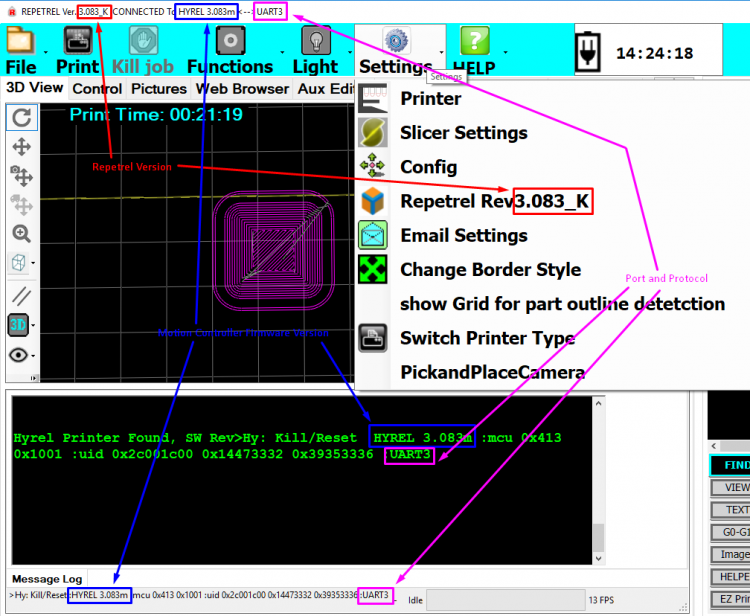
To find out what version of Repetrel Software you are on now:
Install This
Honestly, just use the full installer every time. There are some cases where it's not needed, but it's never a bad thing to do.
NOTE: Davo recommends saving your old repetrel folder as repetrel_(version) before doing ANY upgrade.
Repetrel Installer Full 
Use this to install in a fresh environment.
This download has it all - Repetrel, firmware, manuals, recipes, AND the Ecosystem Apps setup to install prerequisites.
Download the file and run it as Administrator.
We are working to make the newest installer available, but for now, please use this one, for 4.2.543
Missing the COM Driver?
If your lovely operating system decided to upgrade stuff for you, and your tablet no longer talks to the printer (and you have tried the steps listed under "Connectivity" on the sidebar), please download
this driver, uncompress it, and run as administrator (the default account on all tablets is an administrator account).
Thanks, Microsoft!
Installing Offline?
You may need the offline .net updater, available here.
Older Versions
v1
For version 1.85, please visit 1_Install
v2
For version 2.865, please visit 2_Install
v3
For version 3.083_K, please visit 3_Install.
After Repetrel
Please proceed to steps at Firmware, Settings, and Licensing to complete your install or upgrade.

